Updated
January 22, 2016
| By Bob Fugett
Powertap File Structure
<--
prev |
next -->
In Windows, here's how to backup and keep all your data
intact from your downloaded Powertap intervals, notes, user information,
and generated intervals using the Saris PowerAgent software that came with
it.
DO NOT DO THIS: if it makes you even
a little bit nervous.
First, you need to find the files, but the software
doesn't make that easy.
Do this:
1) Select Search/For Files or Folders... on the
Start button
2) Select All files and folders
3) Expand More advanced options and make sure Search
subfolders is active
4) Initiate a search for ".poweragent" on your main drive
5) Click into the .poweragent folder
6) Click into the repository folder
7) Your User files are reduced to numbered pairs with one global
information file such as
athlete12
athlete12.workout0
athlete12.workout0.data
athlete12.workout1
athlete12.workout1.data
athlete12.workout2
athlete12.workout2.data
These are the files you need to backup or send to your
friends for harassing them about your strength.
If you just got your power meter and software up
and running, you should take the earliest opportunity to make sure you
understand how this works by copy/pasting a group of files to another
folder, deleting the originals in the .poweragent\repository folder,
opening PowerAgent to confirm the user and data files are gone, then close
PowerAgent, copy/paste the files back into the folder and reopen
PowerAgent to make sure all the data has been restored.
Nothin' to it!
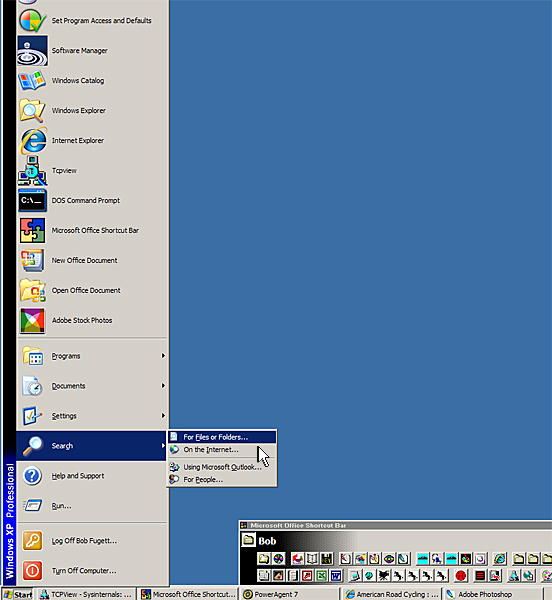
Select Search/For Files or Folders... on the
Start button
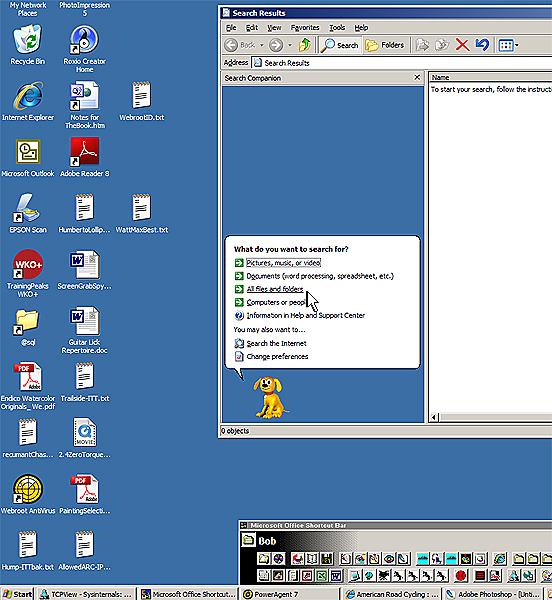
Select All files and folders
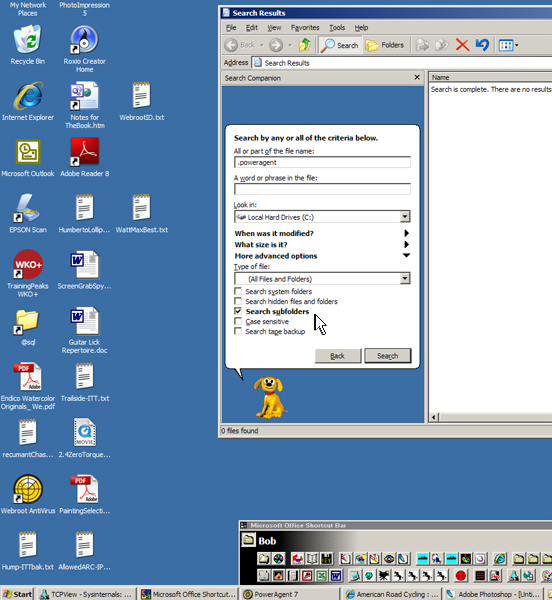
Expand More advanced options and make sure
Search subfolders is active
Initiate a search for ".poweragent" on your main drive
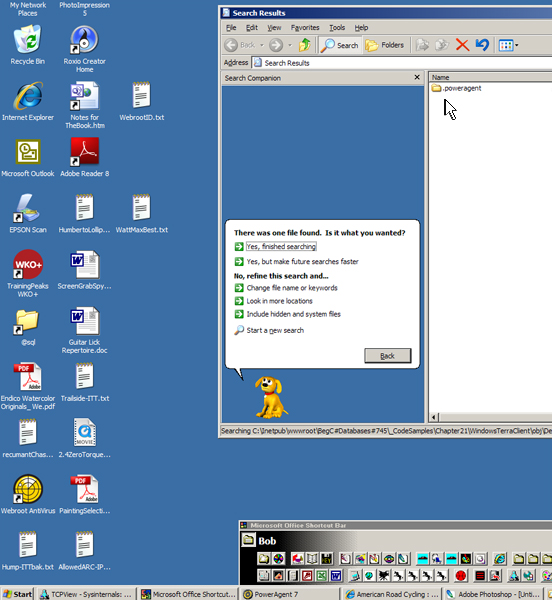
Click into the .poweragent folder
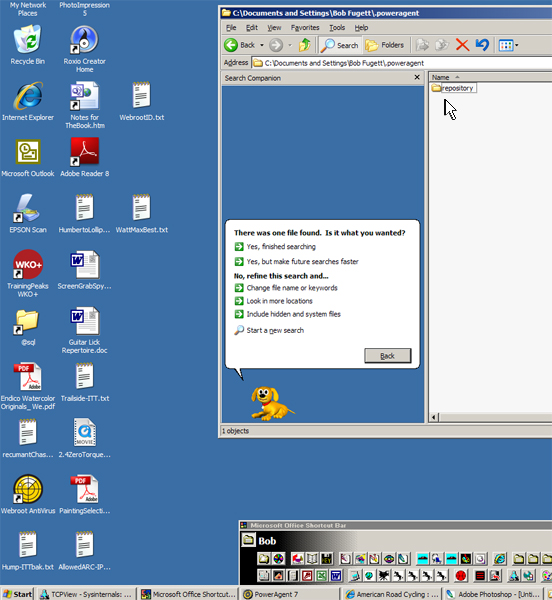
Click into the repository folder
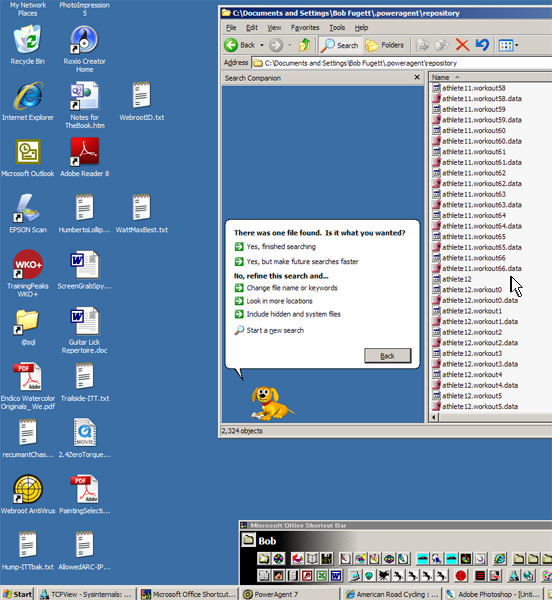
Your User files are reduced to numbered pairs with one
global information file such as
athlete12
athlete12.workout0
athlete12.workout0.data
athlete12.workout1
athlete12.workout1.data
athlete12.workout2
athlete12.workout2.data
These are the files you need to backup or send to your
friends for harassing them about your strength.
If you just got your power meter and software up and running, you
should take the earliest opportunity to make sure you understand how this
works by copy/pasting a group of files to another folder, deleting the
originals in the .poweragent\repository folder, opening PowerAgent to
confirm the user and data files are gone, then close PowerAgent,
copy/paste the files back into the folder and reopen PowerAgent to make
sure all the data has been restored.
Nothin' to it!
DO NOT DO THIS: if it makes you even
a little bit nervous.
<--
prev |
next -->
|